Adding music, intros, and outros gives your podcast a polished, professional touch that keeps listeners engaged.
With Adobe Audition, you can easily blend your voice recordings with background music, sound effects, and branded audio segments — all in one session.
In this step-by-step guide, we’ll show you how to add and mix your podcast music the right way for a consistent, broadcast-ready sound.
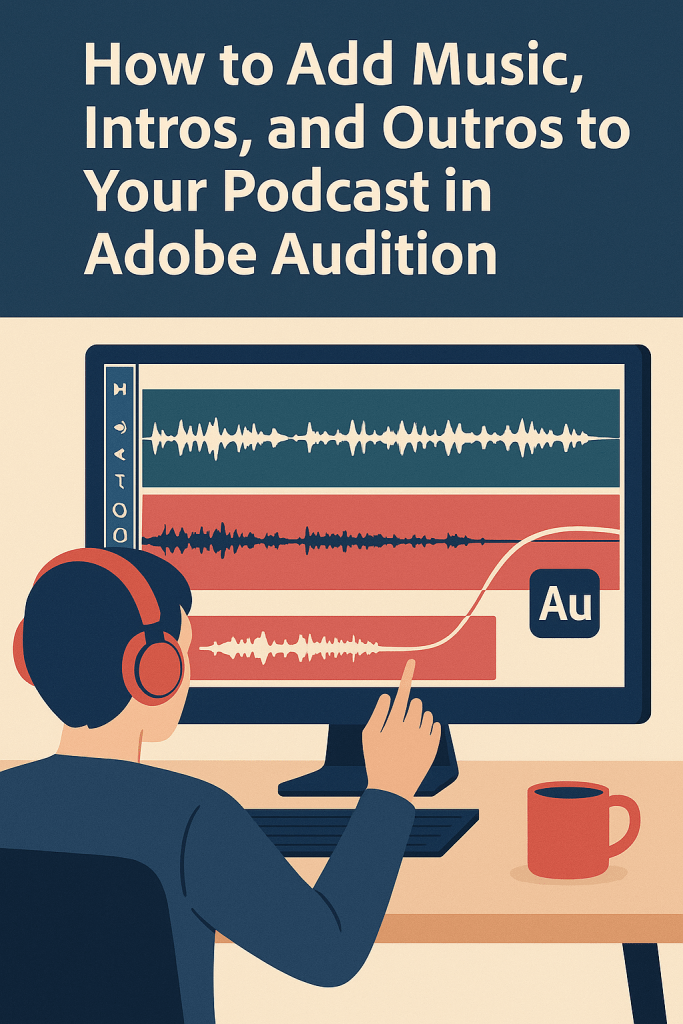
1. Prepare Your Audio Files
Before you start mixing, gather all your podcast elements:
- 🎙️ Your main dialogue or episode recording
- 🎵 Your intro and outro music tracks
- 💬 Any sound effects or stingers
Place all files in a dedicated folder.
💡 Pro Tip: Use royalty-free or properly licensed music to avoid copyright issues. Adobe Stock Audio inside Premiere Pro and Audition includes safe, ready-to-use tracks.
2. Create a New Multitrack Session
- Open Adobe Audition.
- Go to File → New → Multitrack Session.
- Choose a template like Podcast Production or start from scratch.
- Name your session and select a sample rate (44,100 Hz works great for podcasting).
You’ll see multiple tracks labeled “Track 1,” “Track 2,” and so on — this is where your dialogue and music will live.
3. Import Your Dialogue and Music
- Drag your voice recording to Track 1.
- Drag your intro/outro music to Track 2.
- Add background music or effects to Track 3.
🎧 Pro Tip: Keep dialogue and music on separate tracks to control volume independently later.
4. Adjust Volume Levels
When mixing, your dialogue should always be clear and dominant.
Follow these rough guidelines:
- Dialogue: Around –3 dB peak
- Music: Between –18 and –12 dB under dialogue
To adjust:
- Click the yellow volume line on the music track.
- Drag it down until the voice stands out naturally.
💬 Tip: Use headphones to fine-tune — what sounds balanced on speakers may differ in earbuds.
5. Fade Music In and Out
Smooth transitions make your podcast sound professional.
To fade your intro or outro:
- Hover your cursor over the top corner of the clip until a fade handle appears.
- Click and drag right for a fade-in, or drag left for a fade-out.
- Adjust fade curves for gradual or fast transitions.
🎵 Pro Tip: Let intro music fade out fully as your voice begins to speak — this feels natural and keeps your voice front and center.
6. Duck Music Automatically
Adobe Audition makes balancing dialogue and background tracks effortless with Auto Ducking.
- Open the Essential Sound Panel (Window → Essential Sound).
- Tag your dialogue clip as Dialogue.
- Tag your music clip as Music.
- In the Music section, check Ducking.
Audition automatically lowers the music when your voice starts and raises it when you finish — perfect for intros, outros, or mid-roll segments.
7. Add a Branded Outro
A short outro reinforces your show identity.
Try this structure:
🎵 Music fade-in → “Thanks for listening! Subscribe wherever you get your podcasts.” → fade-out
Save this outro as a separate Multitrack template so you can reuse it for every episode.
8. Mix and Export Your Final Episode
When you’re done mixing:
- Go to Multitrack → Mixdown Session to New File → Entire Session.
- Review the final mix in Waveform View.
- Export via File → Export → File, selecting MP3, 128 kbps, Mono.
🎧 Pro Tip: Use the Match Loudness Panel to keep all episodes at the same listening level (around –16 LUFS).
Conclusion
Adding music, intros, and outros in Adobe Audition transforms your podcast from simple voice recordings into a complete listening experience.
With features like Auto Ducking and professional fade tools, you’ll sound like a broadcast studio — even from your home setup.
Next up: “How to Use Auto Ducking in Adobe Audition for Effortless Mixing.”
 AuditionPerfecto