Plosives — those harsh bursts of air that hit the microphone when pronouncing “P” or “B” sounds — are one of the most common issues in voice recordings.
Even experienced podcasters and narrators encounter them, especially when recording close to the mic.
Fortunately, Adobe Audition provides several ways to remove plosives and restore clean, balanced audio without re-recording.
In this guide, you’ll learn multiple techniques for detecting, reducing, and preventing plosives and pops.
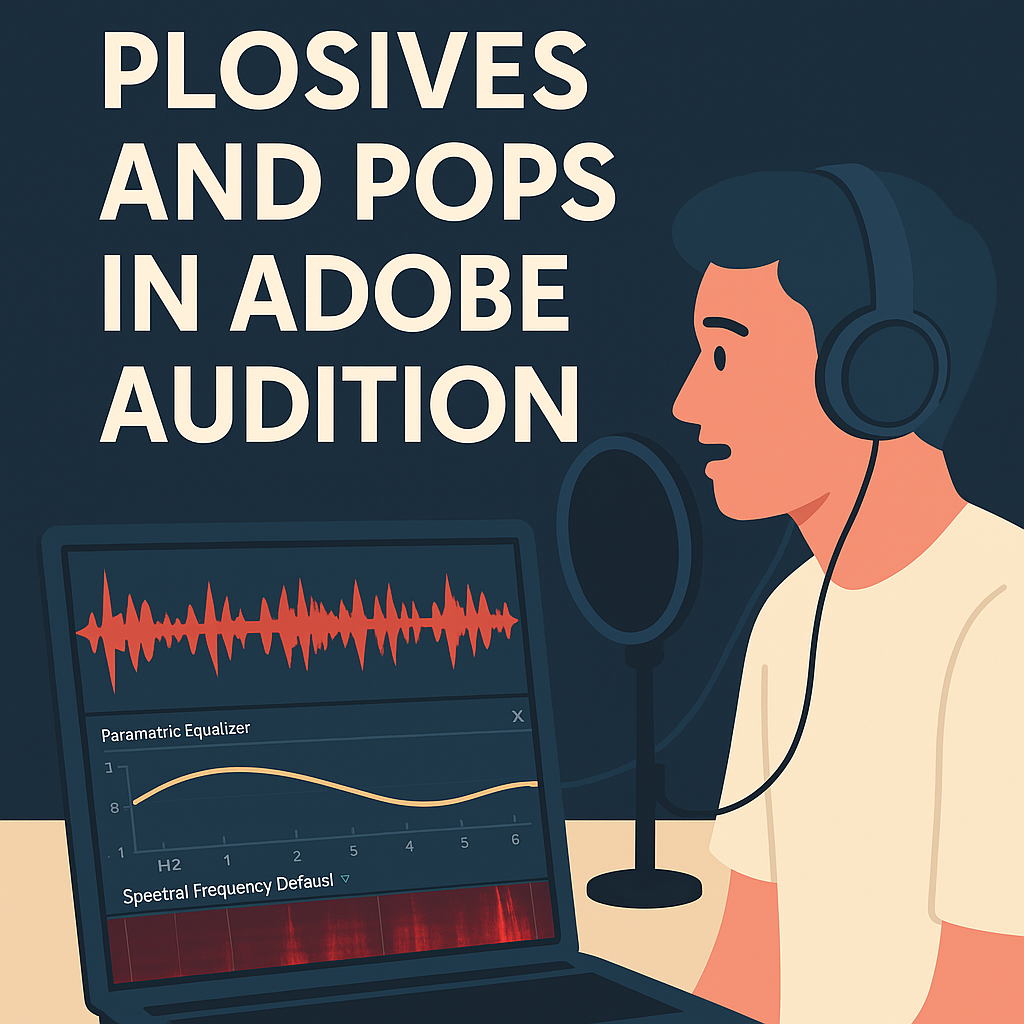
1. What Are Plosives and Why They Happen
Plosives occur when air pressure from certain speech sounds hits the microphone diaphragm too hard.
They cause a short, low-frequency “thump” or pop — visible as a large spike in the waveform.
🎙️ Typical examples:
- “Please pass the popcorn.”
- “Big blue balloons.”
💡 Pro Tip: These sounds are most noticeable on condenser microphones placed too close to the mouth.
2. Identify Plosives in Your Waveform
Open your voice track in Waveform View.
Plosives appear as wide, low-frequency bursts — large spikes at the start of words.
Switch to Spectral Frequency Display (Shift + D) to confirm.
They show up as thick, dark bands near the bottom of the display (under 200 Hz).
3. Use the Automatic DePloser Effect (Best for Speech)
Adobe Audition’s Automatic Click/Pop Eliminator can help tame plosive bursts.
- Go to Effects → Noise Reduction / Restoration → Automatic Click Remover.
- Set Threshold to 10–20 and Complexity to 6.
- Apply only to the affected section.
🎧 Pro Tip: This works best on subtle plosives; for strong ones, try EQ reduction next.
4. Remove Low-Frequency Energy with EQ
A quick and reliable method is to use the Parametric Equalizer:
- Go to Effects → Filter and EQ → Parametric Equalizer.
- Activate High-Pass Filter (HPF) at the bottom left.
- Set it to around 80–120 Hz to roll off unwanted bass rumble.
- Preview until the pop disappears but the voice still sounds natural.
💡 Tip: Female voices may only need 100 Hz; deeper male voices can tolerate a lower cutoff like 80 Hz.
5. Manually Fix Strong Plosives in Spectral View
For the most stubborn pops:
- Highlight the low-frequency area (below 150 Hz) in Spectral Frequency Display.
- Use the Lasso Tool to isolate the burst.
- Press Delete or use Favorites → Heal.
This method removes the plosive energy while preserving the rest of the word.
🎙️ Pro Tip: Use this on isolated words like “Podcast” or “Power” where automated tools struggle.
6. Use the FFT Filter for Precision
If you prefer a manual but frequency-specific approach:
- Go to Effects → Filter and EQ → FFT Filter.
- Choose the preset Kill the Mic Rumble.
- Adjust the curve cutoff between 80–150 Hz.
This filter cleanly removes sub-bass pops without dulling the voice.
7. Prevent Plosives During Recording
Even the best editor prefers to prevent plosives rather than fix them:
✅ Before recording:
- Use a pop filter in front of your mic.
- Speak slightly off-axis (angled 10–20° from the mic).
- Keep 6–8 inches distance between your mouth and the microphone.
💡 Bonus: Foam windscreens can also help reduce air pressure on the mic capsule.
8. Combine DePlosive Fix with Compression
After removing plosives, re-balance your overall volume:
- Apply light Dynamics Processing (Ratio 2:1).
- Use Match Loudness to normalize to –16 LUFS for podcasts.
This ensures your repaired audio blends naturally with the rest of your mix.
Conclusion
With Adobe Audition’s EQ tools, spectral editing, and filters, plosives don’t have to ruin a great take.
Once you master these simple cleanup techniques — and pair them with smart mic positioning — your voice recordings will sound smooth, warm, and pop-free.
Next up: “How to Remove Mouth Clicks and Lip Smacks in Adobe Audition.”
 AuditionPerfecto