If you find yourself performing the same edits over and over — normalizing audio, applying EQ, trimming silence — Adobe Audition has a hidden time-saver just for you: the Favorites Menu.
This feature lets you record and store custom editing sequences as one-click actions, dramatically speeding up your workflow.
In this guide, you’ll learn how to create, save, and use Favorites to automate repetitive editing tasks in Adobe Audition.
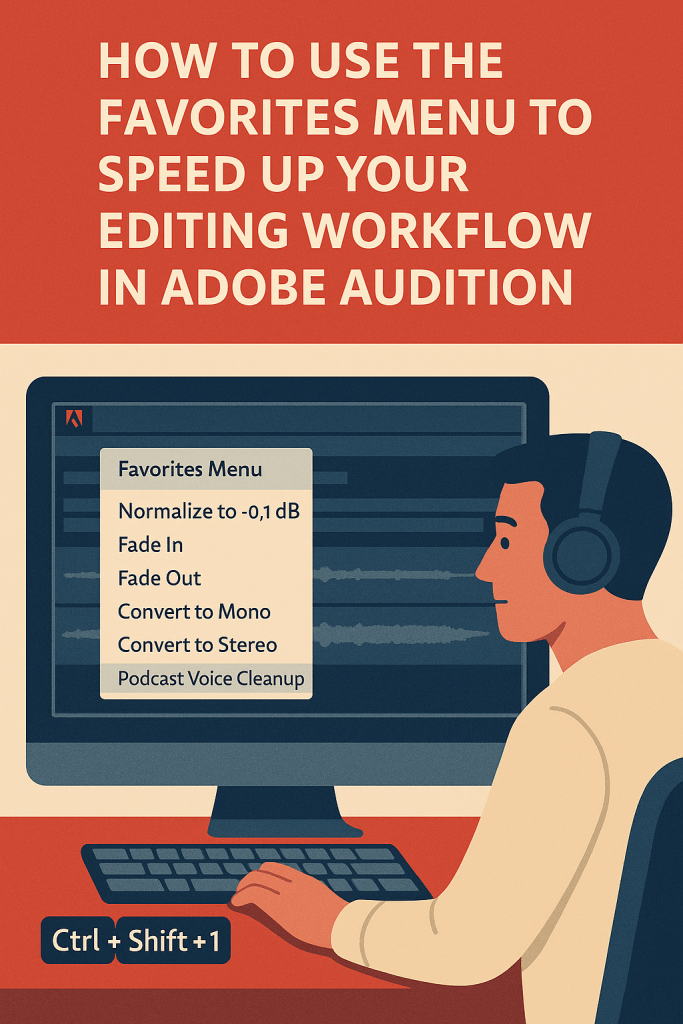
1. What Is the Favorites Menu?
The Favorites Menu acts as a personal shortcut hub for your most-used effects and commands.
Instead of repeating a series of steps manually, you can apply them instantly with a single click.
🎧 Perfect for:
- Podcast editors cleaning multiple episodes
- Voiceover artists doing volume leveling
- Audio producers mastering batches of files
💡 Pro Tip: Favorites can include multiple chained effects — like compression, EQ, and normalization — in one saved action.
2. Access the Favorites Menu
You’ll find it in the top menu bar of Adobe Audition:
Favorites → [List of commands]
By default, it includes common options like:
- Normalize to –0.1 dB
- Fade In
- Fade Out
- Convert to Mono
- Convert to Stereo
These can be applied directly to your selected audio clips.
3. Create a New Favorite
To automate your own workflow:
- Go to Favorites → Start Recording Favorite.
- Perform the sequence of actions you want to automate (e.g., Noise Reduction → Normalize → Save).
- When finished, go back to Favorites → Stop Recording Favorite.
- Name your favorite (e.g., “Podcast Voice Cleanup”).
🎙️ Pro Tip: Keep your favorites named clearly for easy recognition — especially if you’ll create many over time.
4. Apply a Favorite
Once you’ve recorded a favorite:
- Select the audio region or file you want to process.
- Go to Favorites → [Your Saved Favorite].
Audition instantly repeats all steps with identical settings.
💡 This is perfect for batch editing podcast episodes with the same voice and tone profile.
5. Assign Keyboard Shortcuts
To work even faster:
- Go to Edit → Keyboard Shortcuts.
- Search for your favorite by name.
- Assign a custom key combination (e.g., Ctrl + Shift + 1).
Now you can apply your favorite effects with a single keystroke.
6. Use Favorites in Batch Processing
Favorites can be combined with Batch Process Mode to automate entire folders of files:
- Go to Window → Batch Process.
- Add all files you want to edit.
- Under “Run Favorite,” choose your saved preset.
- Click Run.
Adobe Audition applies your full editing sequence to every file — perfect for bulk voice cleanup or mastering.
7. Edit or Delete Favorites
To manage your list:
- Go to Favorites → Organize Favorites.
- Rename, reorder, or remove unused items.
🎧 Pro Tip: Keep your list short and relevant — too many favorites can slow you down instead of helping.
8. Combine Favorites with Presets
You can merge favorites with custom Effect Presets for even faster results:
- Save an EQ or Compressor setting as a preset.
- Include it in your recorded Favorite sequence.
This gives you a hybrid automation workflow — powerful and personalized.
9. Use Favorites for Common Audio Fixes
Here are some examples of efficient one-click Favorites to create:
| Favorite Name | Included Steps | Use Case |
|---|---|---|
| Podcast Voice Cleanup | Noise Reduction → Parametric EQ → Normalize | Podcast intros |
| Music Leveling | Hard Limiter → Match Loudness → Fade Out | Background beds |
| Quick Master | Multiband Compressor → Normalize → Save | Final mix exports |
10. Back Up Your Favorites
To reuse Favorites on another computer:
- Go to Edit → Preferences → Favorites.
- Export your list to a
.xmlfile. - Import that file on your new setup.
💾 This ensures your custom workflow follows you wherever you go.
Conclusion
The Favorites Menu in Adobe Audition is a powerful yet often overlooked tool that turns routine edits into one-click operations.
Once you automate your most-used effects, your editing workflow becomes faster, smoother, and more consistent — letting you focus on creativity, not repetition.
Next up: “How to Master Multiple Files at Once Using Batch Processing in Adobe Audition.”
 AuditionPerfecto