Mixing voice, background music, and sound effects can seem complicated — but with Adobe Audition’s Essential Sound Panel, it’s easier than ever.
This powerful feature helps you balance and blend all your elements using intuitive controls — no advanced mixing skills required.
In this guide, you’ll learn how to use the Essential Sound Panel to create clean, professional mixes for podcasts, videos, and other audio projects.
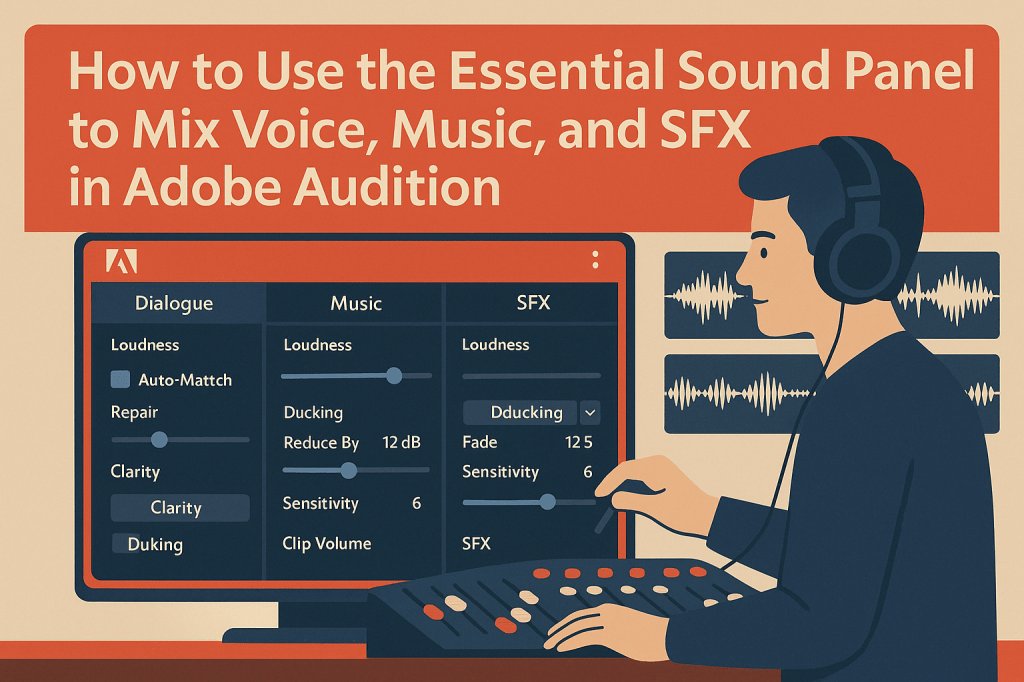
1. What Is the Essential Sound Panel?
The Essential Sound Panel (ESP) simplifies audio mixing by categorizing clips as different sound types — Dialogue, Music, SFX, or Ambience — and applying relevant presets automatically.
🎧 Why it’s useful:
- Streamlines audio balance
- Automatically manages loudness and EQ
- Includes one-click ducking and clarity tools
💡 Pro Tip: ESP is ideal for editors who want great results quickly without deep technical knowledge of compressors and EQs.
2. Open the Essential Sound Panel
- Go to Window → Essential Sound to open the panel.
- Select a clip in the Multitrack View to activate ESP controls.
You’ll see tabs for Dialogue, Music, SFX, and Ambience.
3. Tag Each Audio Type
Select your clips and assign the correct type:
- Voice tracks → Dialogue
- Music beds → Music
- Sound effects → SFX
Audition automatically unlocks the relevant options for each.
💡 Tip: Proper tagging ensures each control behaves as expected.
4. Mix the Dialogue Track
Select your voice or narration track and click Dialogue.
Here’s how to polish it:
a) Loudness
- Enable Auto-Match to set consistent volume.
- Target: –23 LUFS for dialogue (auto-adjusts for podcast standards).
b) Repair Sound
Use sliders to clean up your audio:
- Reduce Noise: 30–50%
- Reduce Rumble: 20–30%
- DeReverb: 10–20%
c) Clarity
- Enable Dynamics for subtle compression.
- Add EQ Enhance for voice brightness.
🎙️ Pro Tip: Use the “Podcast Voice” preset as a strong starting point.
5. Balance the Music Track
Now select your music track and click Music.
a) Loudness
- Enable Auto-Match for normalized levels.
b) Ducking
To automatically lower music under the voice:
- Turn on Auto Ducking.
- Choose Duck Against → Dialogue.
- Adjust:
- Reduce By: 12 dB
- Fade Duration: 300 ms
- Sensitivity: 6
Click Generate Keyframes.
💡 Pro Tip: This saves time — no need to manually automate volume curves.
6. Fine-Tune Sound Effects (SFX)
For sound effects (e.g., transitions, footsteps, or ambience):
- Select the clip → Tag as SFX.
- Under Clarity, use EQ Enhance to make effects sharper.
- Adjust Volume slider to blend naturally with your dialogue and music.
🎧 Tip: Keep effects subtle — they should support, not distract.
7. Preview and Adjust Balance
Use the Mixer View to monitor levels:
- Voice peaks: around –6 dB
- Music: around –15 dB
- SFX: between –12 and –18 dB
💡 Pro Tip: Toggle Bypass Effects to compare before-and-after sound instantly.
8. Save Your ESP Settings as Presets
Once you find your ideal mix setup:
- In the Essential Sound Panel, open the menu → Save Preset.
- Name it Podcast Mix Template or Video Voice Mix.
Next time, you can apply it to new projects instantly.
9. Combine ESP with Match Loudness
After mixing:
- Go to Window → Match Loudness.
- Set target loudness to –16 LUFS.
- Enable True Peak Limiting at –1 dB.
This ensures your entire mix is broadcast-safe and ready for streaming.
10. Export the Final Mix
When satisfied with your mix:
- Go to Multitrack → Mixdown Session to New File.
- Export as WAV (48 kHz) or MP3 (192 kbps) for publishing.
🎙️ Final Tip: Always test your mix on both headphones and speakers — small tweaks can make a big difference in real-world listening.
Conclusion
The Essential Sound Panel is one of Adobe Audition’s most powerful tools for efficient mixing. By tagging, ducking, and balancing your voice, music, and SFX, you can produce professional-quality podcasts, videos, or audio content — all within a single interface.
Next up: “How to Export Multi-Format Podcast Deliverables from Adobe Audition.”
 AuditionPerfecto