Once your podcast is mixed and mastered, it’s time to export it for different platforms — Spotify, Apple Podcasts, YouTube, or your website.
Each platform may require a different audio format, loudness level, or file type.
Fortunately, Adobe Audition makes it easy to export multiple versions of your podcast efficiently, ensuring consistency across all listening channels.
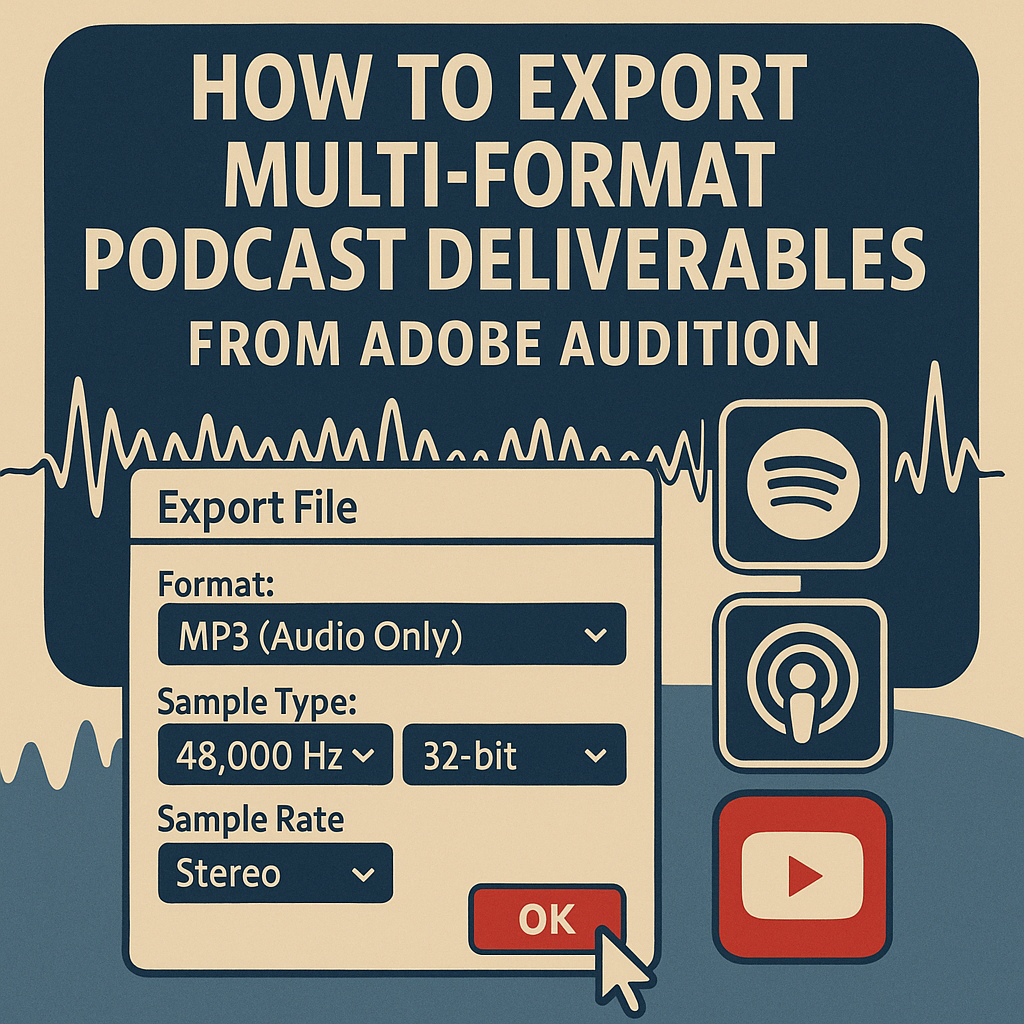
In this guide, you’ll learn how to export, format, and automate podcast deliverables for every platform.
1. Finalize Your Mixdown
Before exporting, make sure your project is complete:
- Go to Multitrack → Mixdown Session to New File → Entire Session.
- Review your final waveform in Waveform View.
- Ensure levels peak around –1 dB and integrated loudness is –16 LUFS.
🎧 Pro Tip: Check balance between dialogue, music, and SFX — what you hear here is exactly what will export.
2. Choose the Correct Export Format
Each platform uses different technical requirements:
| Platform | Preferred Format | Bitrate / Sample Rate | Loudness Target |
|---|---|---|---|
| Spotify | MP3 | 192 kbps / 48 kHz | –14 LUFS |
| Apple Podcasts | AAC (.m4a) | 256 kbps / 48 kHz | –16 LUFS |
| YouTube | WAV | 48 kHz / 24-bit | –14 LUFS |
| Archive or Master | WAV | 96 kHz / 24-bit | –16 LUFS |
💡 Tip: Always keep a high-quality WAV master file — you can re-export other versions later.
3. Export a Standard Podcast MP3
- Go to File → Export → File.
- Choose MP3 (Audio Only) as the format.
- Under Format Settings, select:
- Constant Bitrate (CBR): 192 kbps
- Sample Rate: 48,000 Hz
- Channel Mode: Stereo
- Click OK → Save.
🎧 Pro Tip: Check Include Metadata to embed your podcast title, episode number, and show name.
4. Add Metadata Tags
Adding metadata makes your episodes easier to identify on platforms and devices.
Go to Favorites → Edit Metadata.
Add details like:
- Title: “Episode 12 – Creative Workflow Hacks”
- Artist: “The Audio Perfecto Podcast”
- Album: “Season 2”
- Year & Genre: Optional but recommended
💡 Tip: Some apps (like Apple Podcasts) read embedded ID3 tags directly — keep them consistent.
5. Export a WAV Master File
For archiving or high-end playback:
- Go to File → Export → File.
- Choose Format: WAV.
- Set Sample Rate: 48,000 Hz and Bit Depth: 24-bit.
- Keep Uncompressed PCM selected.
- Click OK.
🎧 This ensures a lossless version for future re-exports or remastering.
6. Create a YouTube Version
If you plan to publish your podcast on YouTube:
- Mix in a music intro/outro or visual background in Premiere Pro or After Effects.
- From Audition, export your audio-only WAV file.
- Sync and render as MP4 in Premiere Pro.
💡 Pro Tip: YouTube normalizes to –14 LUFS, so master slightly louder for consistency.
7. Export for Apple Podcasts (M4A)
- Go to File → Export → File.
- Choose Format: AAC (Advanced Audio Coding).
- Under Settings:
- Bitrate: 256 kbps
- Sample Rate: 48,000 Hz
- Click OK → Save.
🎧 The M4A format offers great sound at smaller file sizes — ideal for iTunes and Apple Podcasts.
8. Automate Multiple Exports
For faster multi-format output:
- Open the Batch Process Panel (
Window → Batch Process). - Add your final master file.
- Under “Run Favorite,” create an export chain (e.g., MP3 + WAV).
- Click Run.
Audition will export multiple file types automatically.
💡 Pro Tip: Save your batch export setup as Podcast Export Preset for future episodes.
9. Normalize Across All Exports
Before finalizing:
- Open Match Loudness Panel.
- Set your target to –16 LUFS for all exports (except YouTube: –14 LUFS).
- Enable True Peak Limiter (–1 dB).
This ensures your files remain consistent regardless of compression differences.
10. Organize Your Deliverables
Maintain a clear export structure like this:
/Podcast_Episode_12/
├── Master_WAV/
│   └── Episode12_Master.wav
├── MP3_Distribution/
│   └── Episode12_Spotify.mp3
├── M4A_Apple/
│   └── Episode12_Apple.m4a
└── YouTube_Audio/
    └── Episode12_WAV.wav
🎧 This makes it easier to update or republish episodes later.
Conclusion
With Adobe Audition’s export tools, you can deliver professional-quality podcast audio to every platform with perfect consistency.
By mastering loudness, file types, and metadata — and automating exports — you’ll ensure your listeners experience top-tier sound everywhere they tune in.
Next up: “How to Archive and Backup Your Completed Podcast Projects in Adobe Audition.”
 AuditionPerfecto